 4.8 out of 5 stars! See what our customers are saying on
  Trustpilot
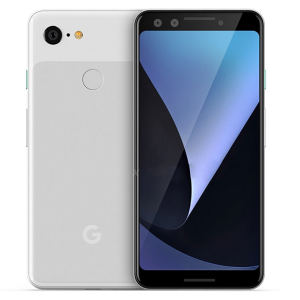
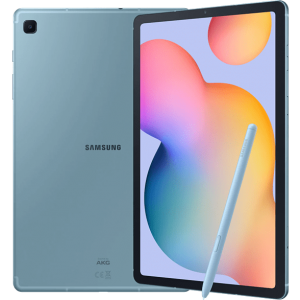


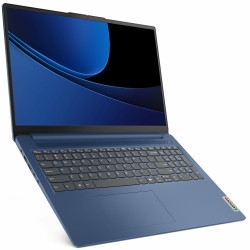
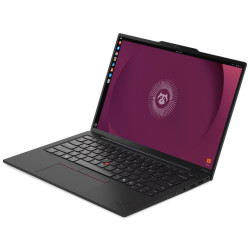
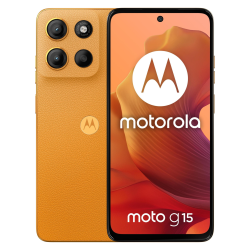






In this guide, we walk through the steps to get LineageOS or LineageOS for microG up and running on your mobile device. This guide assumes you have a new installation of LineageOS. Please read the instructions carefully to complete setup, install apps, customize the device, and become more familiar with your new operating system.
Table of Contents
- Insert Sim Card
- Initial Power-on
- Configure the Browser
- App Repositories
- Install microG
- Pre-installed Apps
- Install New Apps
- Personal Customization
- Hardening Your Device
- Transfer Contacts and Personal Data
- Deregister iMessage
Insert SIM Card
PRO TIP: Learn how to remain anonymous while using a SIM card.
eSIM
Using an eSIM? You can activate it at any time in Settings app > Network & internet > SIMs.
Physical SIM
If this is your first time installing a SIM card, follow our tutorial for detailed instructions.
If you transfer a SIM card from your old phone to your new de-googled phone, it will usually work without needing to contact your mobile carrier. Some mobile carriers will request the IMEI number of the new phone. The IMEI number is found in Settings > About phone > IMEI
NOTE: If migrating from an iPhone, you may need to request a new SIM card from your mobile carrier.
NOTE: When a SIM card is installed for the first time, Access Point Names (APNs) will populate automatically into the device's settings, allowing mobile data and MMS texts to work properly. If mobile data is not working, contact your carrier to verify correct APNs.
Initial Power-on
When powering on the device for the first time, go through these steps
- Power On: Press and hold the power button on the side of the phone.
- Welcome: At the welcome screen, tap Start
- Language: Select your preferred language.
- SIM card missing (if applicable): If your device is equipped to make phone calls and if you do not have a SIM card installed, you will see this message. The SIM card can be installed after initial setup is complete.
- Internet: Connect to a WiFi network by selecting the name of your WiFi network and entering the passphrase.
- Turn on Cellular Data (if applicable): If your device is equipped to make phone calls and you have a SIM card installed and are not connected to a Wi-Fi network, you will have the option of using cellular data to complete the setup process.
- Date and Time: Set your time zone and adjust current date and time if necessary.
- Restore apps and data: If you have a Seedvault backup from LineageOS or any other OS, you can restore it here by selecting Next. Otherwise you can Skip this step.
- Location services: We recommend giving apps permission to the device's location data. Optionally you may set up location data permissions within the individual app settings later.
- Update Lineage Recovery (if applicable): We recommend selecting this option to receive software updates from Lineage for the Recovery partition.
- LineageOS features: Selecting this option sends anonymous diagnostic and usage data to LineageOS.
- Set a PIN: Set up a PIN, password or pattern to unlock the screen. This is an optional step however it will prevent unauthorized access to your phone by another individual.
- Fingerprint or Facial recognition setup (if applicable): Some devices are equipped to use fingerprint or facial recognition to unlock the screen. Follow the on-screen instructions or Skip this step.
- Theme: Select your preferred theme. This can be changed later in system settings.
- Navigation: Choose your preferred navigation method. This can be changed later in system settings.
- Tap Start to complete initial setup.
NOTE: You can safely ignore warning messages like "This device's bootloader is unlocked and its software integrity can't be verified..." or "This device is not running official software."
Configure the Browser
LineageOS includes a Chromium-based web browser named "Jelly", and is labeled "Browser" in the app drawer. It is open source, with the code accessible on GitHub.
NOTE: Do not be alarmed by the Google search engine. Your privacy has not been compromised. Change the default search engine in the steps below or simply install and use an alternative browser. See our list of recommended browsers.
- Open Settings app > Apps > All apps > Browser
- Under Browser scroll down to Advanced
- Tap Install unknown apps and enable Allow from this source
- Close Settings app
- Open the Browser app
- Tap the three vertical dots in the top right area of the screen
- Tap Settings
- Tap the first menu item, Search engine, and set your preference (Brave, DuckDuckGo, and Startpage are recommended)
- Tap the second menu item, Suggestions provider, and set your preference (Brave, DuckDuckGo, or none are recommended)
- Tap the third menu item, Home page, and set your preference (https://duckduckgo.com/ is a good choice)
- Enable LookLock to prevent other apps from reading Browser's content
- Enable Do Not Track to send a "Do Not Track" request to websites you visit
- Close the browser app completely and reopen it for all chances to take effect
App Repositories
TIP: Use F-Droid and Aurora Store just like you would Apple Store or Google Play Store. Search for apps, download, and install. Both repositories will keep you aware of app updates as well.
F-Droid
F-Droid is an app repository that contains only free and open source apps. Apps can be downloaded and installed from F-Droid without the need to register an account.
Instructions to install F-Droid:
- Open the Browser app
- Navigate to https://f-droid.org
- Tap the DOWNLOAD F-DROID button
- Allow access to files when asked and select DOWNLOAD when asked "Do you want to download F-Droid.apk?"
- After the download is finished, swipe down from the top of the screen and tap on the notification that says "F-Droid.apk download complete."
- If you receive a notification that says "your device is not allowed to download apps from this source", tap Settings in the notification bubble, then enable "Allow from this source"
- When asked "Do you want to install this application?" tap Install
- F-Droid is now installed on the device
Aurora Store
Aurora Store is an unofficial free open-source software (FOSS) alternative to Google Play Store. It provides anonymous access to apps from Google Play Store and does not require a Google account.
Follow these steps to install Aurora Store:
- Open F-Droid app
- Tap the magnifying glass icon in the bottom right corner to begin a search
- Type "Aurora Store" and select the app name (subtitle is "by Rahul Kumar Patel")
- Tap Install
Follow these steps to configure Aurora Store:
- While still in F-Droid tap Open, or open Aurora Store from the app drawer
- At the Welcome screen, tap Next
- At the Permissions screen, grant permissions for all items by tapping Grant next to each question
- For App Links, tap + Add link, then check the box next to each link. Tap Add. Press the back arrow
- Tap Finish
- At the Log in screen, select Anonymous
Install microG
microG is an open-source signature spoofer that enables core functions of Google Play Services such as device attestation, push notifications for cloud messaging, and location services. To learn more about the benefits and risks of microG, visit their website.
NOTE: Using microG is optional. It is only necessary if you plan to use banking apps, or apps like Uber, Lift, Grubhub, Starbucks, etc (where in-app financial transactions are processed). It is also useful for enabling push notifications for cloud messaging.
Enable microG F-Droid repository and install the apps
- Open F-Droid and go to Settings > Repositories
- Tap the "+" button to add a new repository
- Tap Enter repository URL manually and enter the URL https://repo.microg.org/fdroid/repo ... OR... tap Scan QR code, then go to microG F-Droid repo from another device and scan the QR code
- Tap Add repository - three apps will appear in a list: microG Companion, microG Services, and microG Services Framework Proxy
- Install microG Companion and microG Services by tapping on each one and selecting Install (microG Services Framework Proxy is optional and only needed by older client libraries)
Configure microG
- Open the newly installed microG Settings app, which is now available in the app drawer
- Self Check: Leave the default settings as-is
- Google Accounts: Leave as-is. If you have a Google account and need to sign in, select Add Google account and sign in with your credentials. Using this feature will connect your device and identity with Google. Not recommended!
- Google device registration: Enable Register device. This setting registers your device to Google services and creates a unique device identifier. microG strips identifying bits other than your Google account name from registration data. In other words, it creates a required identity with Google services, but as long as you do not sign in to an account the registration will remain anonymous.
- Cloud Messaging: Enable Receive push notifications. Some apps that require Google services use this function to push notifications. If you notice apps that you have installed are not sending notifications, then enable this setting. Otherwise we recommend leaving it disabled.
- Device Attestation: Enable Allow device attestation. Some apps depend on Google SafetyNet to ensure the operating system is properly secured. For example banking apps like Square and PayPal, or apps like Uber require it. If you do not plan to install banking apps or apps to make purchases, this setting can be safely disabled.
- Play Store services: If you install paid apps, those apps may require verification that you have purchased them on Google Play Store. In that case you will need to enable this feature.
- Work profile: Disabled by default. This refers to a unique situation when setting up a device associated with a workplace or educational institution. It can be safely ignored otherwise.
- Location: Enable at least one option for Wi-Fi location and Mobile network location. For information about installing alternative modules, see more about MicroG's Unified Network Location Providers.
Initialize microG
- Reboot your device (Do not skip this step)
- Disable Battery Optimization by allowing background usage - Go to Settings app > Apps > See all xx apps > microG Services > App battery usage > Enable Allow background usage
Pre-installed Apps
TIP: If you are new to Android, swiping up with one finger from the home screen will access the app drawer. All installed apps will be organized alphabetically in the app drawer.
LineageOS includes a suite of pre-installed apps.
- AudioFX - A simple audio equalizer app (not available on all devices)
- Browser - An open-source browser developed by LineageOS developers
- Calculator - A straightforward calculator app
- Calendar - To start using, go to app settings to add a calendar
- Camera - Open-source camera app capable of capturing still images and video
- Clock - A simple clock app that includes an alarm, timer, and stopwatch
- Contacts - The standard Android open source contacts app
- Files - A simple file browser
- FM Radio - An FM radio app that uses a headset for an antenna
- Gallery - A very straightforward and easy to use photo gallery
- Messaging (if applicable) - An open-source SMS/MMS text messaging app for devices equipped with carrier services
- Music - Open source music player; sorts music by artist, album and playlists
- Phone (if applicable) - A standard phone dialer app for devices equipped with carrier services
- Recorder - A simple voice recorder app
- Settings - Use to configure operating system settings
Install New Apps
Along with LineageOS's pre-installed apps, we recommend installing these essential apps. Open F-Droid and search titles to install.
- Thunderbird - an email client to manage existing email accounts
- Breezy Weather - get weather forecasts in your area
- CoMaps - turn-by-turn navigation and maps
- NewPipe - watch YouTube videos ad-free
- Mullvad VPN or ProtonVPN - encrypt network communication with a VPN service
Complete your privacy apps suite by browsing our full list of recommended apps... curated by us from years of exploring and testing [so you don't have to].
Simple Rules to Follow...
- Try open-source apps first: Although F-Droid may seem unfamiliar, you will find privacy-focused alternatives to the apps you have previously used.
- Stay away from Big Tech: Apps made by Google, Facebook, Microsoft, Apple and other Big Tech corporations should be avoided based on their standard practice of selling your personal data for profit and tracking everything you do.
- Install apps from these sources, in this order:
- F-Droid: The best place to find apps is on F-Droid, a repository that curates privacy-friendly open-source alternative apps.
- Aurora Store: If you cannot find a solution on F-Droid, the next step is to search Aurora Store, an open source app that connects to Google Play Store anonymously.
- Direct Download: Not all apps have to be installed using a repository. There are several excellent apps available for download directly from their developer's website.
- The less apps on your device, the better the privacy. Ask yourself, "Do I really need this app?". If there is a software program you can install on a PC or laptop instead, that is a better option.
- Progressive Web Apps (PWAs): Instead of installing a company's app, access their website from a mobile browser; use the browser's Add to Home screen or "Add shortcut" feature to create a web app.
Personal Customization
Make LineageOS feel more like your phone with these recommended settings.
- Enable Adaptive brightness: Adaptive brightness may be disabled by default. To enable it, open Settings app > Display > Adaptive brightness > tap toggle button to enable
- Customize home screen: Select Settings app > Wallpaper & style to change home screen appearance (download our favorite wallpapers at https://digitalprivacy.shop/wallpaper)
- Add apps to home screen: From the app drawer, hold a finger down on an app icon; begin to drag the icon with your finger (the home screen will appear); drag the icon to the preferred location and release
- System navigation: Choose how you navigate with gestures by going to Settings app > System > Gestures > System navigation
- Add widgets: Add a clock or other widget. Hold your finger on an empty area of the home screen; In the pop-up menu tap Widgets; Select desired widget
- Display settings: Go to Settings app > Display to adjust brightness, lock screen, screen timeout, theme, font size, auto-rotate, screen saver, and more
Harden Your Device
Implement the steps below to ensure the highest level of privacy and security on your new device.
- Reduce App Dependency: The fewer apps on your phone, the more secure and private it will be. We challenge you to only install what you need. This will increase available storage space and reduce the potential for leaked data through random apps.
- Review App Permissions: Apps don't always need the permissions they request. Go to Settings > Apps & notifications > See All ## Apps. Then select each app and review permission settings. Change to Approve, Deny, or Ask Every Time as necessary.
- Install a Firewall: Install a firewall like Rethink DNS or NetGuard to restrict network access on a per-app basis. Once installed, scan through the list of apps and decide whether to restrict network communication. Be cautious of restricting system apps that appear in the list.
- Setup Multiple User Profiles: If you must install proprietary (closed source) apps that are questionable in terms of privacy (i.e. for your job), create a "Work" profile and isolate them from your personal data. Learn more.
- Activate Private DNS: Why is DNS important? Learn more. Go to Settings > Network & Internet > Private DNS. Select Private DNS provider hostname and enter base.dns.mullvad.net. Or follow our guide to select a specific DNS resolver of your choice.
- Install a VPN: A virtual private network encrypts the data being sent from your device by tunneling to a VPN server, effectively cloaking your data and preventing ISP interception. Additionally, to the downstream recipient, your device's location will appear to be the location of the VPN server. This feature is useful when accessing websites that restrict access from specific countries. For a no-cost alternative that uses the TOR network, we recommend Orbot, available on F-Droid by enabling "Guardian Project" repository. There are also three free VPN services available on F-Droid: the CalyxVPN, RiseUpVPN, or ProtonVPN. However paid VPNs offer more features and higher speeds.
- Regularly Disable Network Transmission: Get in the habit of disabling Location, NFC, Wi-Fi, Bluetooth, Camera, and Microphone when not in use. You can easily disable them by swiping down from the top of your home screen to access the Quick Settings tiles. For added security, place the device in a Faraday bag when not in use.
Transfer Contacts and Personal Data
If you are coming from an iPhone and want to migrate your contacts, photos, and other personal data, follow the guide Transferring Personal Data from iPhone. Or if you are coming from an Android device, follow the guide Transferring Personal Data from Android.
Deregister iMessage
If you are coming from an iPhone, you need to deregister iMessage in order to get text messages from other iPhone users. Go to Apple's "Deregister iMessage" webpage and follow the instructions.